
GPX to FIT Converter
Free, no sign-up. Turn your GPX into a FIT course or a watch-ready GPX in your browser.
Your converted file shows here
- Runs in your browser
- No sign-up
- Turn cues for planned routes (Pro)
- Some watches cut long tracks; we warn above 10,000 points
How to convert GPX to FIT
You get a FIT file named after your GPX, ready to download in your browser.
- Drop your route on Drop a GPX file, or click the box and pick the file. With no file, try a sample ride under the box to see a finished result.
- Choose Garmin, COROS, Suunto, Wahoo or Other. For a FIT file, set File format to FIT course; Wahoo and Other start there.
- Enter Average speed or pace in km/h or min/km, then pick an Activity. Read why speed matters.
- Use the fixes offered under the box. Add elevation fills a file with no heights, and Reduce points thins a very long line, then reports how far it moved.
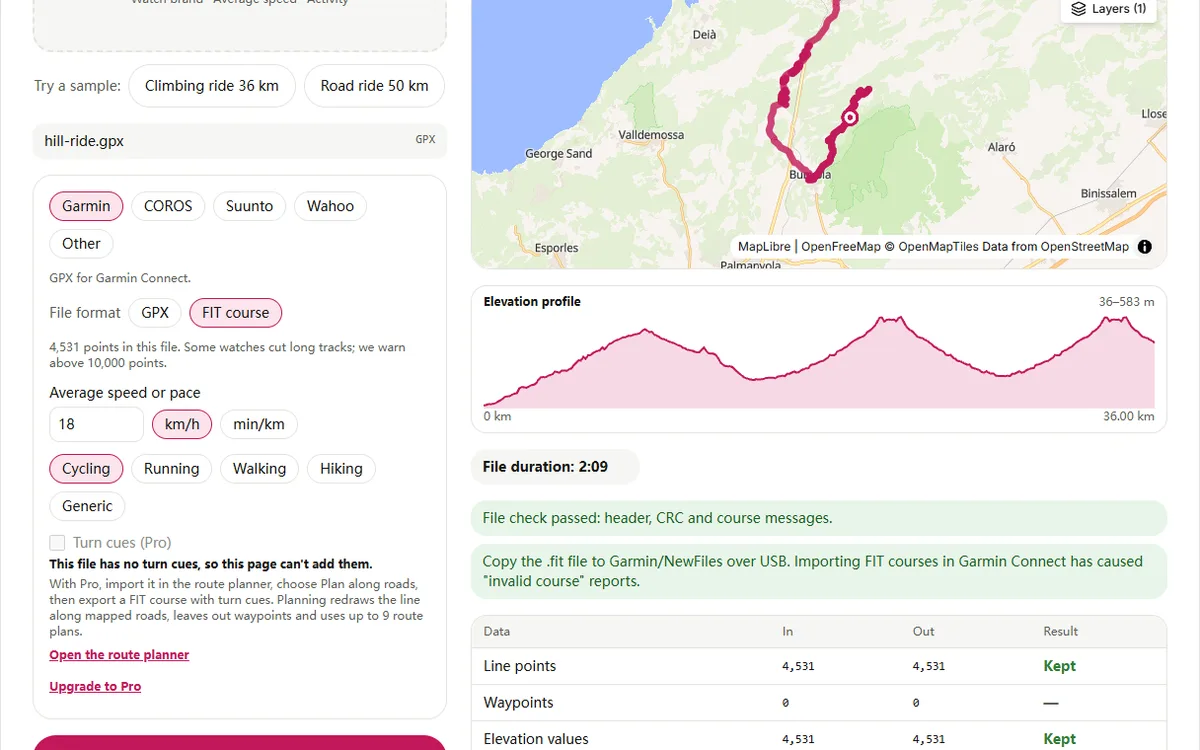
- Press Download FIT course. A map appears, plus an elevation chart when your route has heights.
- Under the map, the In and Out columns show how many line points, waypoints, heights, times and names carried over. Download again saves another copy.
Next, put the course on your watch. Want left and right prompts? See where turn cues come from.
Course FIT vs activity FIT
A FIT course is a route your Garmin follows: a line of points, plus course points for cues and places. An activity FIT records a workout you already did, often with heart rate or power.
To follow a route, you need a course. GPX Editor, an online GPX editor, writes FIT courses from your GPX and does not create activities.
| File | Main use | Heart rate | This converter |
|---|---|---|---|
| FIT course | Route to follow | Not written | Creates it |
| FIT activity | Workout record | Often recorded | Does not create it |
| GPX | Route or recording | Can be stored | Reads it |
In our own test with a sample ride file, all 6,279 line points reached the FIT course. None of its 6,279 heart rate values did.
Before download, the converter checks the file header, CRC and required course messages, then marks the file as passed.
Turn-by-turn cues: where they come from
Turn cues come from routing. When you draw a route along roads in GPX Editor, routing returns instructions based on OpenStreetMap roads and paths.
Routes you draw with routing
- Pro writes the instructions into your FIT course as course points.
- Left and right turns, including slight and sharp ones, become left or right points.
- U-turns and other special instructions become generic points.
- Cue names are cut to 16 bytes, about 16 plain English characters.
Check the cues before you ride, because map data may be wrong or out of date.
Imported GPX files
A GPX file imported from another app gets no turn cues. The converter does not guess turns from the shape of the line. Waypoints in your file still become course points.
You can still download it as a FIT course for free. Preview the route and elevation on this page, or open the route in the editor.
Put the course on your watch
Garmin takes the GPX through Connect, or a FIT course over USB. A name check offers transliteration for non-ASCII names, and FIT course names are cut at 32 bytes.
Garmin: import a course into Garmin Connect
Upload a GPX route to your Garmin watch in 3 steps.
- Choose Garmin and download the GPX.
- In Garmin Connect on the web, open Training & Planning, then Courses, and import the file.
- Save the course, send it to your watch, then sync.
Garmin with turn cues: copy over USB
- Export the FIT from the route planner (Pro).
- Connect the watch by USB and copy the file into the Garmin/NewFiles folder.
Since July 2026, Garmin forum users have reported "invalid course" errors after importing FIT courses in Connect, so use USB.
COROS: load a GPX route
You need 3 steps to load a GPX route onto your COROS watch.
- Choose COROS and download the GPX.
- Open the file on your phone with the COROS app and save it.
- In the Route Library, select the route and sync it with your watch.
Suunto: import a GPX route
- In the Suunto app map view, tap the plus symbol and import your GPX.
- Open the route, save it and sync it to your watch.
Wahoo ELEMNT: import a FIT course
- Choose Wahoo and save the FIT course to your phone.
- Open it with the Wahoo app and confirm the import.
- Select the imported route for your ELEMNT.
Why your Garmin does not show a converted course
Find your symptom below and get a file your Garmin can follow.
With Garmin selected, this converter saves a GPX unless you set File format to FIT course.
- Your download ends in .gpx
- Choose the brand first, then FIT course, because changing brands restores the default format. A FIT result also shows File check passed.
- Your watch reports an invalid course
- Swap the Connect import of your FIT for the cable method in the Garmin steps.
- Connect rejects your GPX
- Drop the same file here to check it. The page tells you when it cannot read the file or finds waypoints without a line.
- Your file has waypoints only
- Draw a line in the route planner, then convert that new GPX.
- A long course ends early
- Check the point count under File format. Press Reduce points when the page offers it, then download again.
- Names show odd characters
- Choose Use transliterated names, which turns a letter such as é into e. Names in non-Latin scripts stay as they are.
Average speed and timing
- Why speed matters
- A FIT course stores a time for each point. Devices can use those times for a virtual partner or arrival estimate.
- Missing timestamps
- Your average speed or pace sets the times. A fully timed track keeps its own.
- Finish estimate
- The page shows your expected duration. At 18 km/h, 36 km takes 2 hours.
- Activity type
- Choose cycling, running, walking, hiking or generic. The FIT file stores hiking as walking.
When GPX is the better choice
GPX is often enough, because Garmin Connect, the COROS app, the Suunto app and the Wahoo app import it.
- No turn cues on Garmin
- Import the GPX in Garmin Connect.
- COROS or Suunto
- Choose GPX.
- Sharing or editing later
- Keep the GPX, since a FIT course drops descriptions and line colors.
- From Google Maps
- Turn the link into a GPX first.
To edit first, open the route in the GPX editor or use the open-source gpx.studio. To read a FIT file, open it in the GPX viewer.
Who converts GPX to FIT, and for what
See what your Edge, ELEMNT Bolt or app export turns into once it becomes a course.
Garmin Edge riders: one line with your stops marked
Your Garmin Edge gets one course line in the FIT file, even when the GPX has several tracks or routes. Tracks join first, then routes, each group in file order.
Your stops stay marked, and waypoints typed water, food, summit or danger keep that course point type. A custom type such as Cafe becomes a generic point. Next, copy the course over USB.
Wahoo ELEMNT Bolt riders: a course name you recognise
Your ELEMNT Bolt course takes the name stored in the GPX file details. Without one, it takes the file name, so call the file something like sunday-gravel.gpx.
Load it with the Wahoo ELEMNT import steps.
Hikers with an AllTrails GPX: set a walking speed
Turn your AllTrails GPX into a hiking course: change Activity from Cycling to Hiking, then enter how fast you walk.
Your download button switches on once the speed is between 1 and 10 km/h, the range for Hiking.
Strava users: ride a saved ride again
Your fully timed Strava GPX shows File duration with the result, so you get your recorded time instead of an estimate.
Multi-day riders: several files, one Wahoo course
Your daily tour files can become one Wahoo course for free, up to five GPX files at a time. Join them first, because this converter takes one file at a time.
- Open Merge GPX Files and add the days in riding order.
- Choose Merge & Download.
- Choose Export to watch, pick Wahoo, then Download for Wahoo.
Choosing Garmin in that window gives you a GPX instead.
Convert GPX to FIT online without installing software
Open this page, add your GPX and take away a finished file, with no app or extension to set up.
GPX Editor converts GPX to FIT in your web browser, so there is no software to install and no GPX upload.
Here is what happens to your route at each step.
- Reading and converting
- Your browser does both, and builds the new file on your own device.
- Map under the result
- Background map tiles for the area around your route load from an online map.
- Add elevation
- Your browser fetches terrain tiles that cover the route and reads each height from them. Your GPX file stays with you.
- Open in editor
- The converted file is saved inside this browser, then opens in the home page editor.
To reach your watch, use your brand's app or website, or a USB cable, as shown in the watch steps.
GPX to FIT converter FAQ
How do I convert a GPX file to FIT format?
Drop your GPX file, choose FIT course as the format and download, following the six steps.
How can I convert GPX to FIT online for free?
Use a converter that writes FIT course files, such as GPX Editor, an online GPX editor. It is free for files up to 20 MB, with no sign-up and no ads.
How do I upload a GPX route to my Garmin watch?
Use Garmin Connect for a GPX or a cable for a FIT file, both covered in these Garmin steps.
How do I import a GPX file into Garmin Connect?
The Courses page of the Garmin Connect website takes your file, as shown in the import steps.
How do I load a GPX route onto my COROS watch?
Your phone does the work through the COROS app and its Route Library, following the COROS steps.
How do I transfer a GPX route to my Wahoo ELEMNT?
Wahoo accepts GPX, but we suggest a FIT course from this page, imported through the Wahoo app.
Why is my course not appearing on my watch?
Run through saving, sending and syncing again, using the steps for your brand.
Is this GPX to FIT converter free?
Yes, converting and downloading a FIT course is free. Turn cues need a route planned along roads and Pro, which costs $6.99 a month, $39 a year or $79 once for lifetime access.
Make a FIT course for your watch
Free, no sign-up. For turn cues, plan your route along roads, with Pro.