
Merge GPX Files
Join GPX, FIT and TCX files into one track or one track per day. Free for up to 5 files, no sign-up, processed in your browser.
Your converted file shows here
Merge into one track or keep each day separate
The mode is the choice that matters.
One continuous track
Joining end to end gives you a single line from the first start to the last finish. Pick this when a device or app should follow it as one route.
- A ride split in two by a dead battery
- An out-and-back recorded as two files
- A long course you want on your watch
One track per day
To combine GPX files from different days, keep each day as its own track; the map shows each day in a different color. Pick this for a trip map or a look back.
- A 25-day bikepacking tour saved as 25 daily files
- A thru-hike logged one stage at a time
- A week of commutes you want on one map
Both modes save one GPX file. Distance and climbing are totals for the whole trip.
How to merge GPX files
Build one GPX file from your GPX, FIT or TCX recordings right on this page.
- Drop files: Drag them into the box at the top, or click it; the Choose a folder button takes a whole folder. With no files at hand, pick a button beside Try a sample.
- Check the order: Press Sort by time or Sort by start and end points (which one), or drag a file by its handle. A message above the list flags gaps over 1 km and overlapping times.
- Pick a mode: Select One continuous track or Keep each file as its own track (compare them). If you fill gaps with Follow roads, also choose Walk, Bike or Drive.
- Merge & Download: Press it, and merged.gpx saves to your device while the map shows the result. For a smaller file, set Reduce points first.
Who merges GPX files, and for what
Find the files and buttons for your trip.
Strava riders: one ride saved as two activities
Rejoin both halves before the ride returns to Strava. Export each activity as GPX, drop both in and press Sort by time. The Strava FAQ answer covers your originals.
Garmin runners: a run split when the watch died
Turn a watch half and a phone half into one run file. Drop the watch's FIT beside the phone app's GPX, and sensor data carries over. Keep Leave gap selected, and the file holds only what your devices recorded.
Bikepackers and thru-hikers: daily files into one trip
Your daily files become one tour in a single download. A folder loads in file-name order, so day2 lands before day10. Select Keep each file as its own track, and any unnamed track takes its file's name.
Then save the trip map. For a long tour, see how many files merge free.
Race entrants: course sections onto a Garmin Edge
Give your Edge one course instead of a file for every section. Drop the organiser's section files, press Sort by start and end points, and scan Gap to next. A large figure can mean a missing or misplaced section.
Keep your course running one way: sorting only reorders, so reverse backwards sections in the editor first. Then Export to watch for Garmin and follow the Garmin Connect steps with merged-watch.gpx.
Ride leaders: Komoot routes into one file for the group
Send your group one file for the weekend instead of a link per leg. With a GPX of each Komoot route in hand, sort them as planned routes. Your route and track files join the same way.
Meeting points saved as waypoints stay in the download.
What happens when the files don't connect
Each file in the list shows its gap to the next one. Check each file in the GPX viewer for missing times first.
- Sort by time
- Uses the first timestamp in each file. Best for recordings from a watch or phone.
- Sort by start and end points
- Chains each file to the one that starts nearest its finish. Use it for planned routes without times.
- Fill a gap
- Leave it, draw a straight line, or follow roads (this uses your route planning quota).
- Remove overlap
- Removes only exact time-and-position repeats at one-track joins. In our overlap test, distance went from 60.0 km back to 50.0 km.
Tracks, routes and segments in your merged file
Pick your settings by the file structure you need. A segment is one unbroken run of points inside a track, so it shows where your recording stops and restarts.
| Your settings | Tracks in merged.gpx | Segments |
|---|---|---|
| One continuous track + Leave gap | One, named Merged GPX | Your files' segments, kept apart in list order |
| One continuous track + Straight line | One, named Merged GPX | One unbroken segment |
| One continuous track + Follow roads | One, named Merged GPX | One segment, with road points in routed gaps |
| Keep each file as its own track | Each track from your files | Same split as your source tracks |
Routes from a planner are saved as tracks in both modes, so merged.gpx has no separate route entries. With separate tracks, each track also stores a line color matched to its file.
The setting can change your total distance. We ran the "2 rides with a gap" sample, which has 2.31 km between its files. Leave gap showed 47.00 km, while Straight line showed 49.30 km because it counts the jump.
For only the distance in your files, keep Leave gap. With Follow roads, gaps under 25 m aren't routed. If road routing fails or your route plans run out, a message says straight lines filled the gaps.
Merging many days: keep the file small
Many days add up to many points, which is why a merged GPX file gets too big. Merging alone does not shrink it: our two test rides grew from 1.78 MB to 2.25 MB.
After merging, the tool shows the point count and file size. Reduce points to your watch's limit or a target size before export.
| Setting | Points | File size | Largest shift from the original line | Total climb |
|---|---|---|---|---|
| Off | 6,279 | 2.25 MB | 0 m | 995 m |
| To a point count: 1,300 | 1,296 | 464 KB | 1 m | 943 m |
| To a point count: 600 | 599 | 215 KB | 5 m | 918 m |
| To a point count: 400 | 400 | 144 KB | 9 m | 877 m |
At a 600-point target, the file shrank to 9.6% and distance changed 0.48%. Climbing drops because reduction ignores elevation.
Combine GPX, FIT and TCX with heart rate and power
You can drop a FIT file from your watch next to a GPX from your phone and a TCX from an older app. They merge into one GPX file.
- Times
- Every point keeps its timestamp, so the merged ride still sorts and replays in order.
- Heart rate, cadence and power
- Kept from GPX, FIT and TCX files. In our GPX and FIT test, all 6,280 points kept their heart rate.
- Temperature
- Kept from GPX and FIT files.
- Waypoints
- Kept with their names and elevation. File descriptions are not carried over, and one continuous track drops track names.
Merge FIT files from a watch or bike computer
Turn several FIT recordings into one download without converting each file first. Add your .fit files and follow the merge steps.
- What you get
- One file called merged.gpx. Your mode and gap settings decide its tracks and segments.
- Points without GPS
- Records with no position are left out. A trainer file with no map positions turns red: "We couldn't read this file. The others will still merge."
- A FIT file for your device
- After merging, press Export to watch, choose Wahoo or Other, then download merged-watch.fit.
That FIT download is a course to follow, which differs from a recorded FIT activity. Keep merged.gpx as your ride record, especially if you want its heart rate or power readings. For your original watch files, see how to export them from Garmin Connect.
Make a full-trip map to share
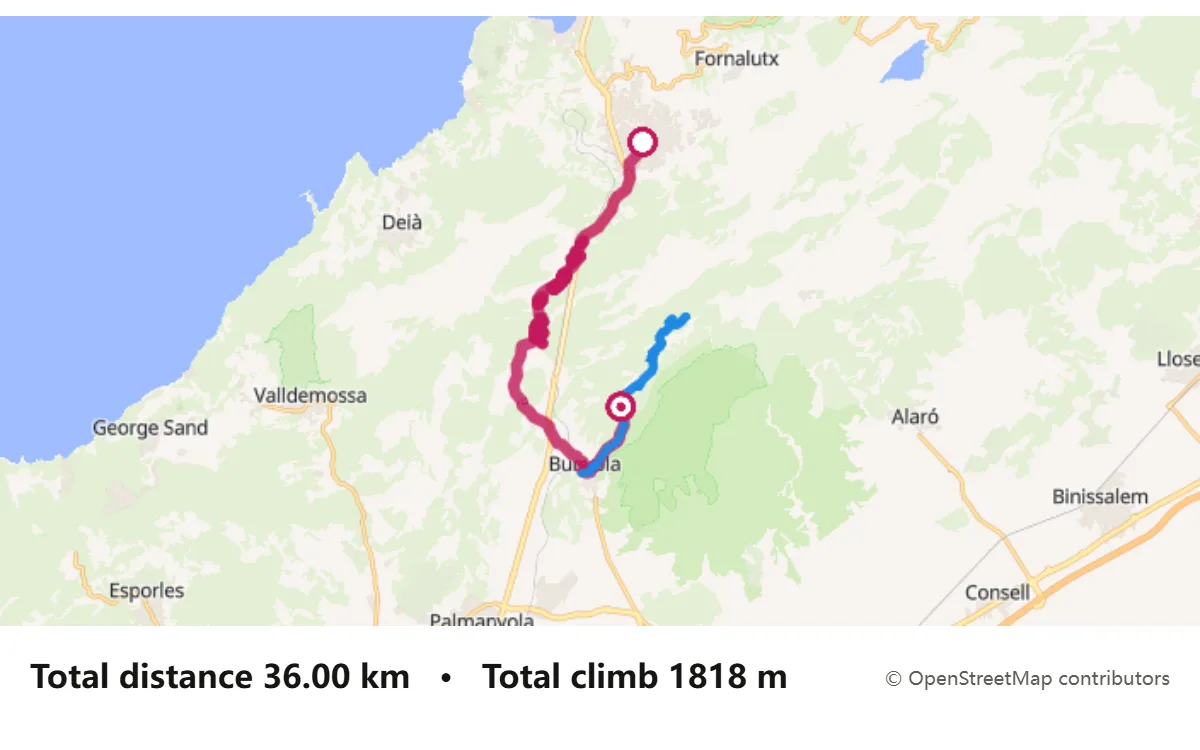
Save the whole trip as one PNG image. Each day gets its own color, and the image shows total distance and total climbing. It fits a post on Instagram, a club newsletter or a trip report on your blog.
Choose one track per day before you merge, so each day keeps its color.
The image is made in your browser from the merged file. This page makes still images, not videos. For an animated 3D video of a trip, Relive turns activities into one.
Other ways people merge GPX files
There are three common ways to join GPX files: a command-line tool, a text editor, or an online merger. Back up your originals before you try any of them.
| Method | Good for | How it joins | Watch out for |
|---|---|---|---|
| GPSBabel (command line) | Scripts and many files | The track,merge filter joins all points into one track sorted by time | Needs timestamps; no map preview |
| Text editor | One quick join | You paste one file's track segment into another | One missed tag breaks the file |
| Google My Maps | Viewing a trip by day | Each file becomes a layer | Up to 10 layers per map, so a 25-day trip won't fit |
| GPX Editor | Ordering, gaps and file size | One track or one per day, sorted by time or by start and end points | Free merges up to 5 files |
For a route you will follow, use one continuous track and reduce points for your watch. For a trip you want to show, keep one track per day and save the trip map. To trim or reverse the result, open it in the GPX editor.
Route files from a planner usually have no times, so sort them by start and end points. Activity files from a watch sort best by time.
Merge GPX files FAQ
How do I merge two GPX files into one?
GPX Editor, a free online GPX merger, joins both in your browser with no account: follow the merge steps. You can merge GPX files without installing software.
How do I combine multiple GPX files into one route?
Choose One continuous track as you follow the merge steps.
How can I merge GPX files in the correct order?
Sort by time for recordings, or by start and end points for planned routes (merge steps).
How do I join GPX tracks without losing waypoints?
Merge them here. Waypoints keep their names and elevation, and every track point keeps its time. File descriptions are dropped, and one continuous track drops track names.
Can I combine GPX files?
Yes, with each other and with FIT and TCX files. Heart rate, cadence and power are kept in the merged GPX.
Why is my merged GPX file too big?
Many days add up to many points. In our test, reducing a 6,279-point merge to 599 points cut it from 2.25 MB to 215 KB.
Can I merge two GPX files online for free?
Yes. Free merges up to 5 files of up to 20 MB each. A 7-day Trip Pass costs $4.99, and Pro costs $6.99 a month or $39 a year.
How do I combine GPX files for Strava?
After the merge steps, upload the GPX to Strava, which takes GPX, TCX and FIT files up to 25 MB. Delete the original activities first, because Strava rejects duplicates with the same date and time.
How do I combine GPX files in Garmin Connect?
Follow the merge steps with one continuous track. Then import the GPX in Garmin Connect as a new course and sync your watch. For turn cues, import the GPX in the route planner, choose Plan along roads, then export a FIT course on Pro.
Are my files uploaded?
No. Files are read and merged in your browser. Only filling a gap along roads sends the two gap ends to the routing service.
Merge your GPX files into one
Free for up to 5 files, no sign-up, processed in your browser.